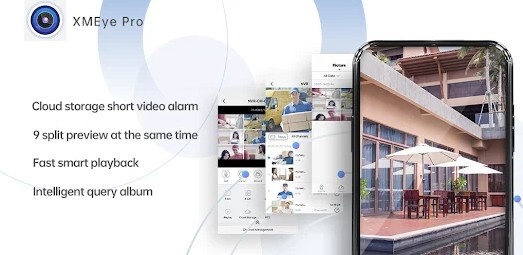
How to Login & Monitor CCTV Cameras Using XMEye Pro App?
In today's fast-paced world, security is a priority for both homes and businesses. With the advancement of technology, security cameras have become an essential part of keeping an eye on our properties. One of the most popular applications for monitoring CCTV cameras remotely is XMEye Pro. It allows users to access their cameras from anywhere, providing real-time video feeds and notifications. This article will walk you through the process of logging into and monitoring cameras using the XMEye Pro app, so you can ensure your property’s safety with ease.
What is the XMEye Pro App?
Before diving into the details of logging in and monitoring, let’s first understand what the XMEye Pro app is and what it offers. XMEye Pro is a mobile application used to connect and view security cameras remotely. It supports a wide range of CCTV and IP cameras, including NVR (Network Video Recorder) and DVR (Digital Video Recorder) systems. The app provides users with real-time video feeds, playback options, alarm notifications, and remote control of camera settings.
Key Features of XMEye Pro:
Remote viewing of cameras
Live video feed and playback options
Support for various DVR and NVR systems
Push notifications for motion detection alerts
Easy-to-use interface for monitoring multiple cameras
Steps to Login & Monitor Security Cameras Using XMEye App
Now, let’s dive into how you can log in and start using the XMEye Pro app to monitor your security cameras.
Step 1: Download and Install XMEye Pro
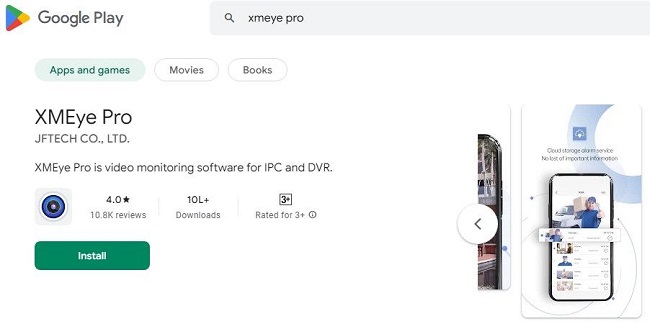
The first step is to install the XMEye Pro app on your smartphone. The app is available for both Android and iOS devices, and you can download it from either the Google Play Store or the Apple App Store.
For Android:
Open the Google Play Store on your Android phone.
Type “XMEye Pro” in the search bar.
Tap the Install button to download and install the app on your device.
For iOS:
Open the App Store on your iPhone or iPad.
Search for “XMEye Pro.”
Tap Get to install the app on your device.
Once the installation is complete, launch the app by tapping its icon.
Step 2: Create an Account or Log In
To start monitoring your cameras through the XMEye Pro app, you need to either create a new account or log in with an existing one.
Creating a New Account:
Open the XMEye Pro app.
On the main screen, tap the Sign Up button.
Fill in the required fields:
Email: Enter your valid email address.
Password: Create a strong password.
Confirm Password: Re-enter your password to confirm.
After filling in the details, tap the Sign Up button to create your account.
You may be required to verify your email address by clicking on a link sent to your inbox.
Logging In to Your Existing Account:
If you already have an XMEye Pro account, open the app and tap the Log In button.
Enter your email and password that you used to create your account.
Tap Login to proceed to the main dashboard.
How to Add Your Camera or Device?
Once you have logged in, the next step is to add your security camera to the app for remote monitoring. This can be done in just a few steps, whether you are using a DVR, NVR, or IP camera.
Adding a Camera via QR Code:
Most modern cameras come with a unique QR code that can be scanned using the XMEye Pro app to easily add the device.
Open the XMEye Pro app on your phone.
Tap the Add Device or + button on the main screen.
Select Scan QR Code from the options.
Use your phone’s camera to scan the QR code found on the back of your camera or its packaging.
The app will automatically recognize the camera and add it to your device list.
Manually Adding a Camera:
If your camera does not have a QR code or if you prefer to add it manually, follow these steps:
Open the XMEye Pro app and tap on Add Device.
Select Manual Add from the options.
Enter the necessary details such as:
Device Name: Give your camera a name (e.g., "Front Door Camera").
Device Type: Choose the camera’s type (e.g., NVR, DVR, IP Camera).
Device ID: This is a unique identifier that is often found on the camera’s settings or device menu.
Password: Enter the password for your camera’s system. This is usually set during the camera setup process.
Once the details are entered, tap Save to add the camera to your list.
How to Monitor Your Cameras Using XMEye Pro App?
After adding your cameras to the XMEye Pro app, you can begin monitoring them in real time. The app provides an easy-to-use interface that allows you to access live feeds, control cameras, and view recorded footage.
Viewing Live Feed:
On the app’s main screen, tap the camera you want to monitor.
The live video feed from your camera will appear on your phone screen.
You can zoom in or out by pinching the screen, or you can swipe to adjust the viewing area.
Tap the play button to start the live feed.
Controlling Camera Settings:
The XMEye Pro app offers various controls to adjust your camera’s settings directly from your mobile device. These controls may vary depending on your camera model, but some common options include:
Pan and Tilt: Adjust the camera's angle remotely (available for PTZ cameras).
Zoom: Use pinch gestures to zoom in and out on the live feed.
Audio: If your camera supports two-way audio, you can enable the microphone or speaker to listen or speak through the camera.
Viewing Recorded Footage:
To view previously recorded footage from your camera, follow these steps:
Open the XMEye Pro app and tap on the camera you want to view.
Tap the Playback button to access recorded videos.
Select the date and time range for the footage you want to view.
Tap the Play button to start the playback.
Set Up Alerts and Notifications
One of the most useful features of XMEye Pro is the ability to receive alerts and notifications about motion detection or other activities around your property. Here’s how you can set them up:
In the app, go to the Settings menu for the device you want to configure.
Look for the Alarm Settings or Motion Detection section.
Enable Motion Detection and adjust the sensitivity to your preference.
Turn on Push Notifications to receive alerts whenever motion is detected.
You can also set up email alerts or configure the system to record video when motion is detected.
Accessing Multiple Cameras
XMEye Pro supports monitoring multiple cameras simultaneously, which is particularly useful for larger properties or businesses with several cameras. Here’s how to manage multiple devices:
On the main screen, you can view a list of all the cameras you’ve added.
Tap on any camera to access its live feed.
To view multiple cameras at once, tap the Multi-screen button (typically represented by a grid icon).
You can select the number of cameras you want to view on one screen (2, 4, 6, or 9 cameras depending on your device).
You can swipe between cameras or tap to expand a particular feed for closer monitoring.
Troubleshooting Common Issues
While using the XMEye Pro app, you may encounter a few common issues. Here are some troubleshooting tips:
Camera not connecting: Ensure that the camera is powered on and connected to the internet. Double-check the device ID and password.
Poor video quality: Check your internet connection speed. A slow connection can affect video quality. Consider using a higher bandwidth if needed.
App crashes: Make sure your app is updated to the latest version. If the issue persists, try reinstalling the app.
Conclusion
The XMEye Pro app is a powerful and convenient tool for remotely monitoring your security cameras. With the ability to log in securely, add devices, view live feeds, and set up alerts, it provides everything you need to keep an eye on your property from anywhere in the world. Whether you are using it for home security or business surveillance, the app’s user-friendly interface and rich features make it an excellent choice for managing your cameras. By following the steps outlined in this guide, you can easily log in, add your cameras, and start monitoring your property in no time.
Remember to regularly check for app updates and ensure your cameras are properly maintained for optimal performance. Stay secure and stay connected with the XMEye Pro app!
Updates